Step 5 - Sending a message
Ways to send
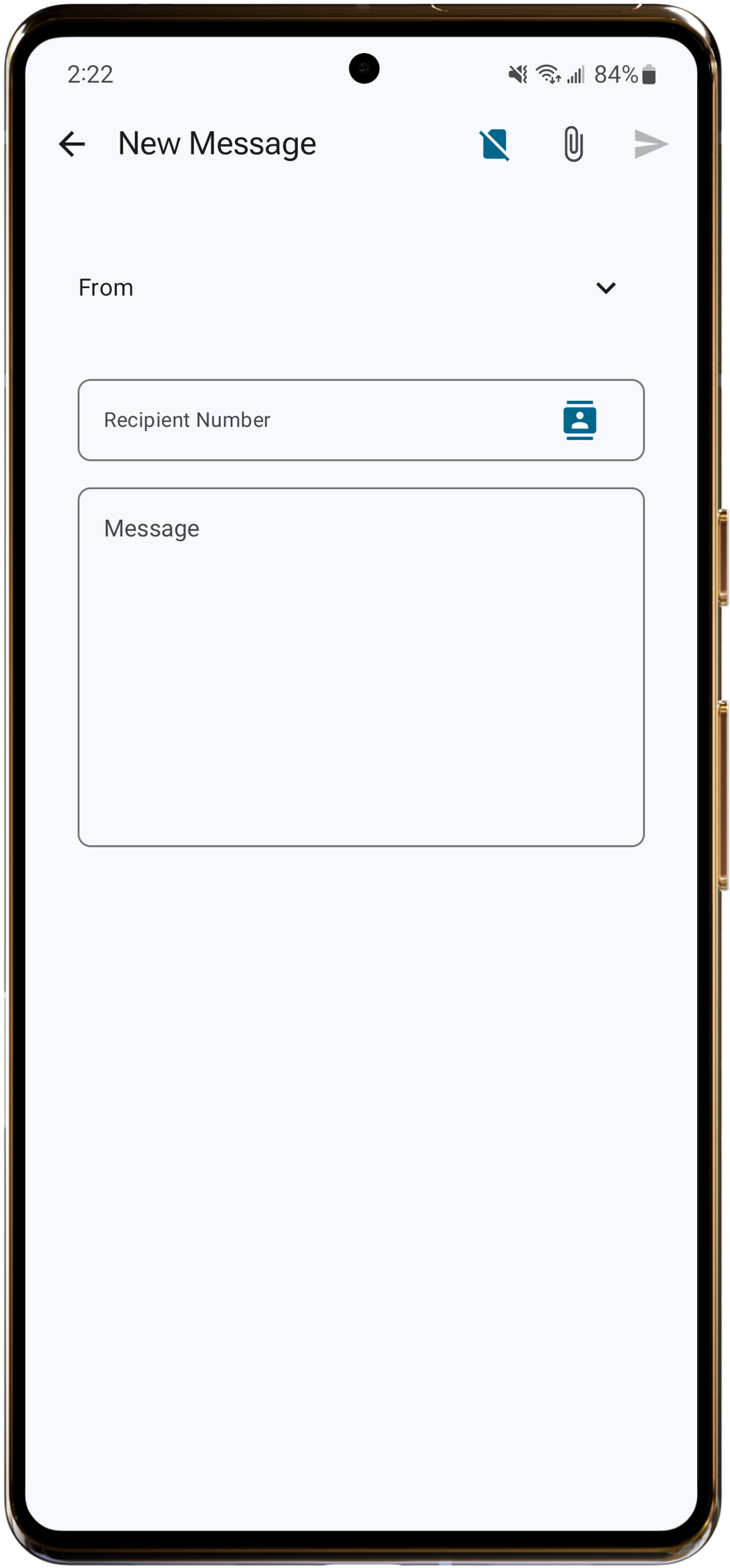
RelaySMS works in two ways. You can use one or both depending on your situation.
Way 1 - Send quickly with Offline RelaySMS Mail (no setup needed)
Best for: when you are caught in a shutdown and need to send quickly.
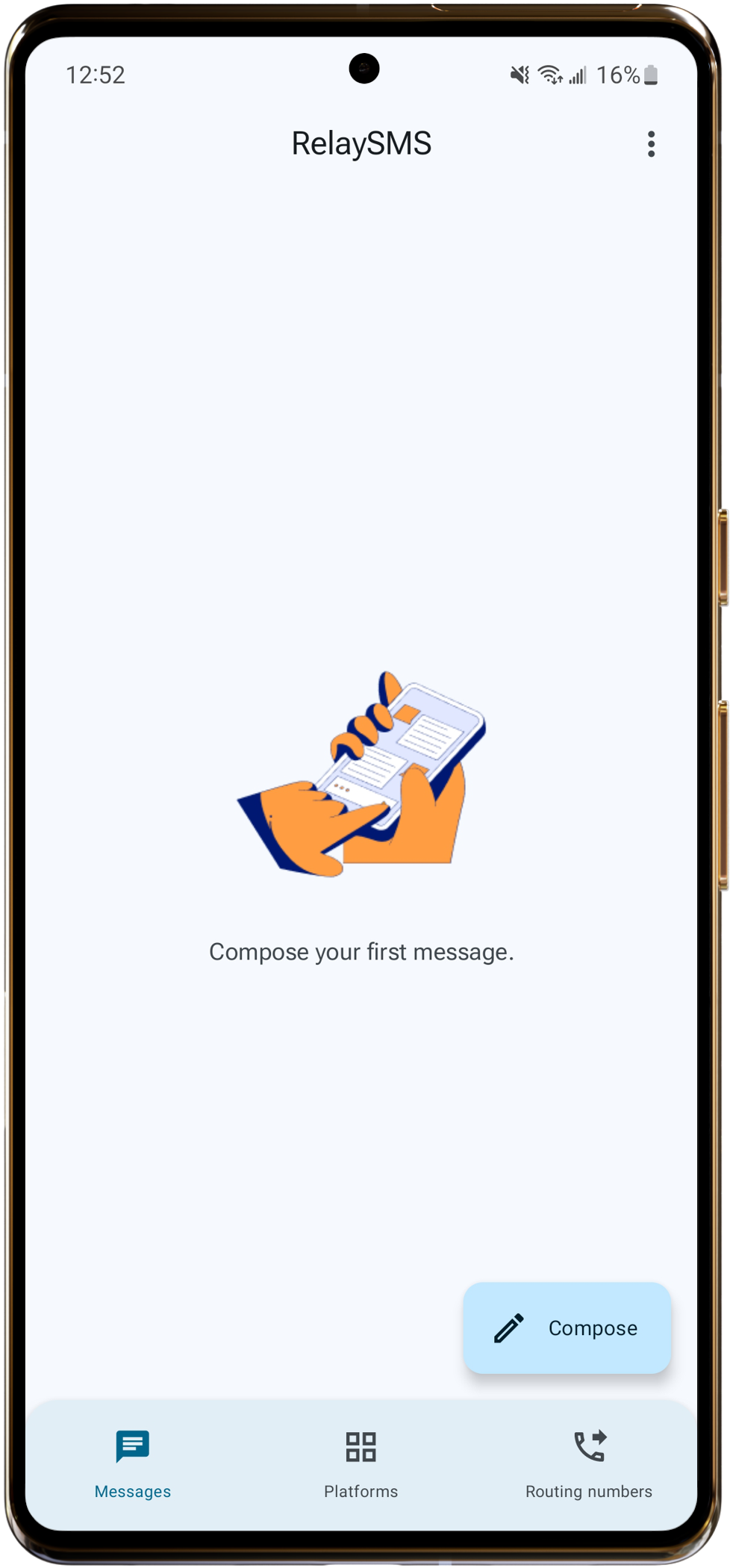
- Tap Compose on the home screen.
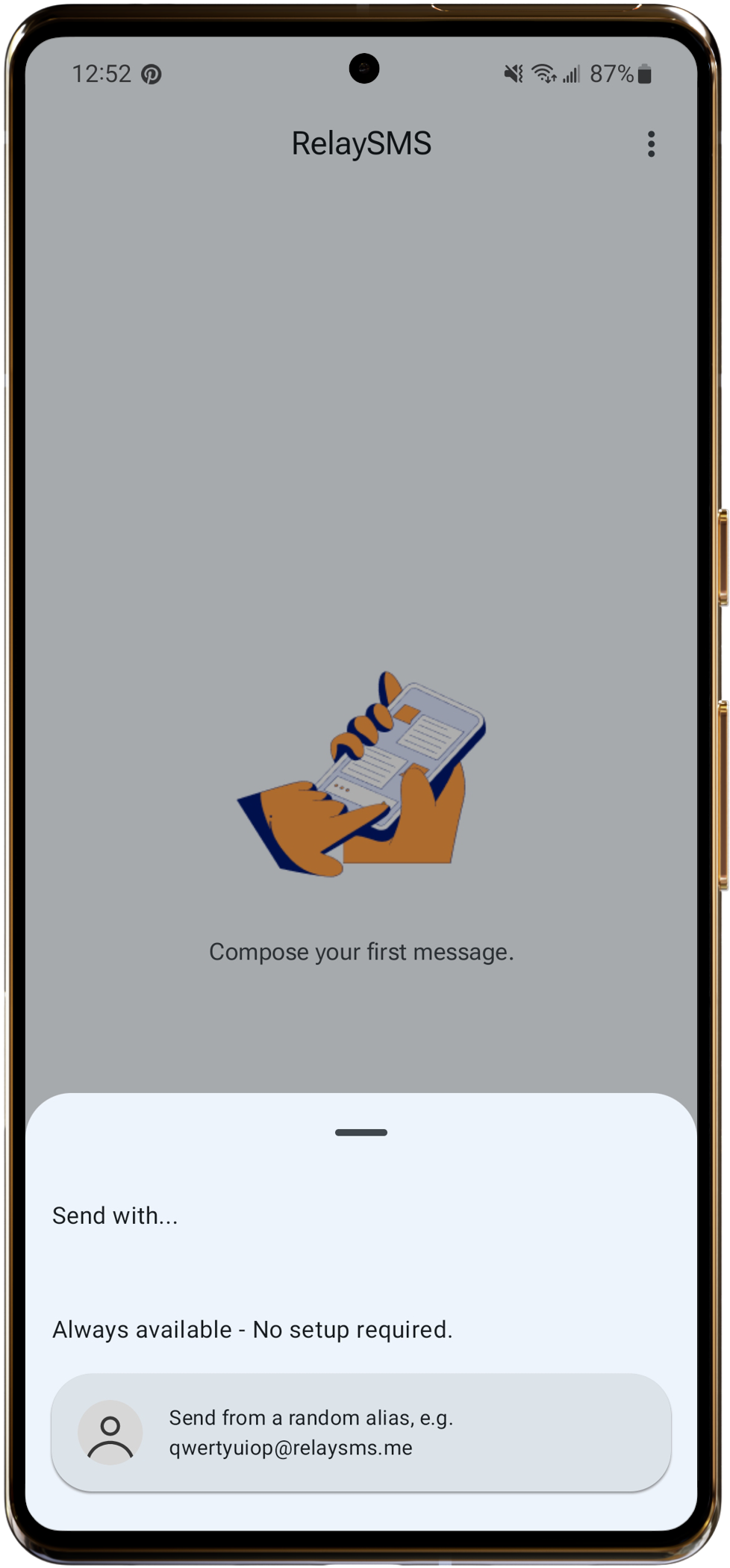
- Select the "Send from a random alias" option.
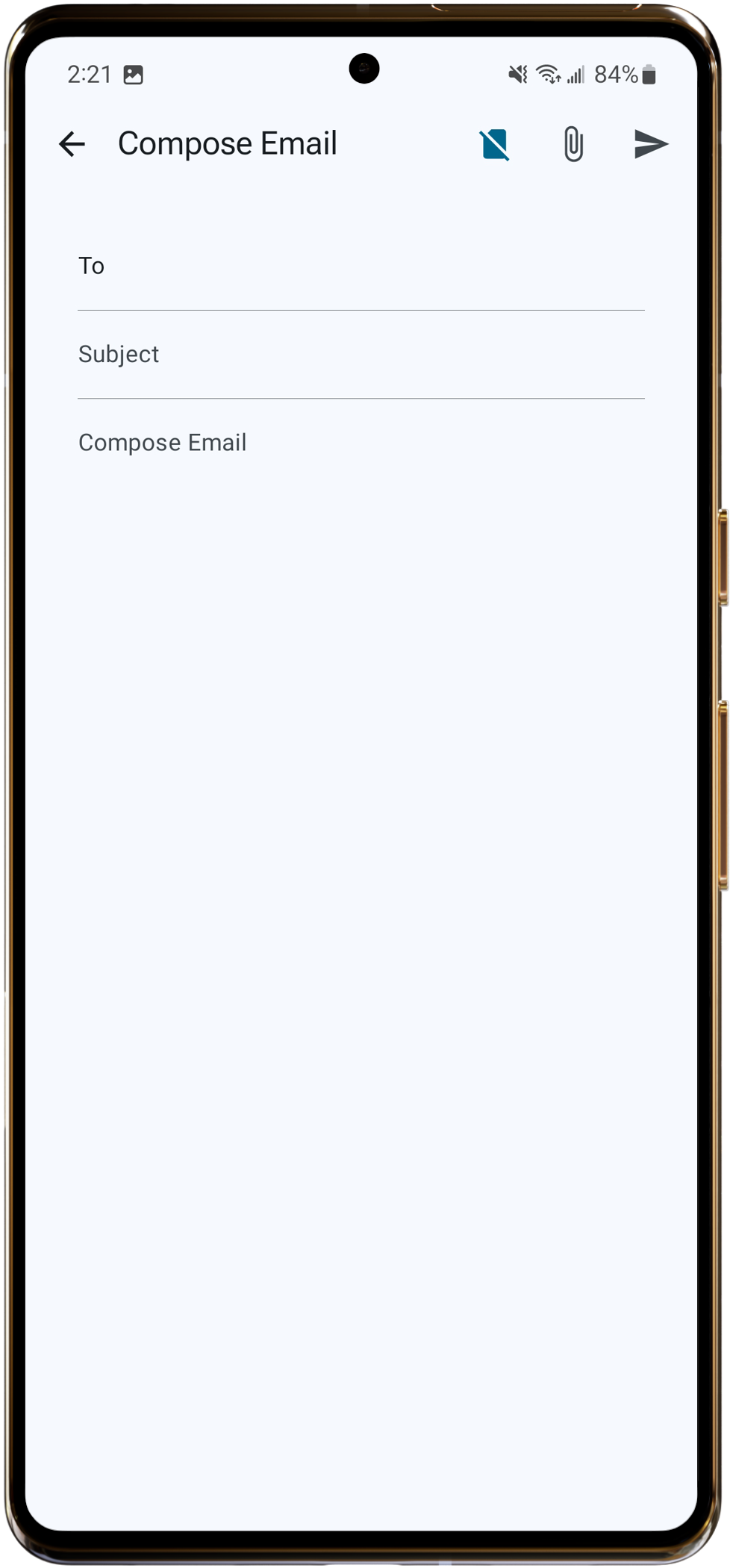
- Type your receivers email address and message.
- Tap Send.
- If you are prompted - Choose a routing number from the list and close the pop-up.
Way 2 - Send with saved platforms
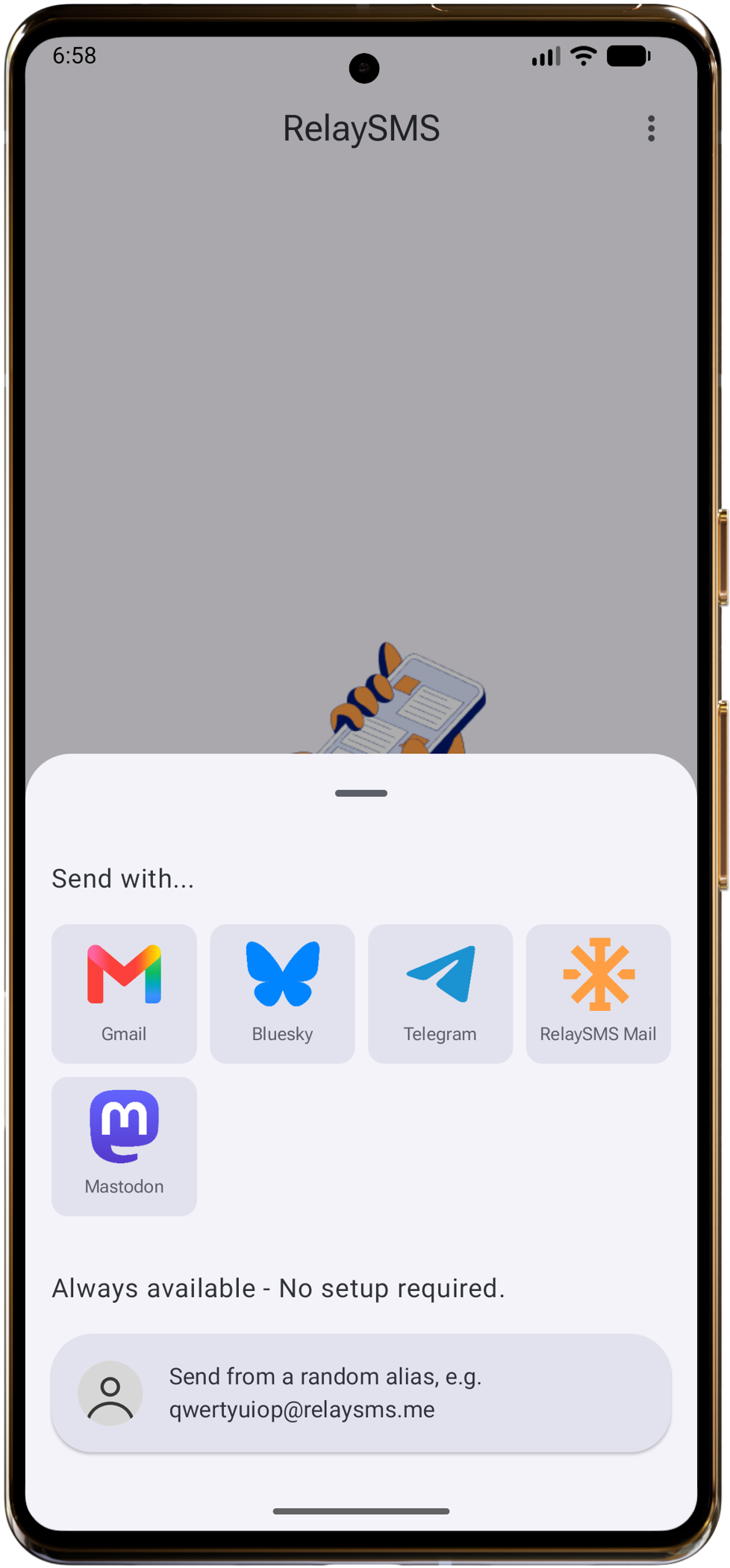
Best for: when you want to send from your own Gmail, Bluesky, Telegram, or saved RelaySMS Mail account.
- Tap Compose on the home screen.
- Select your platform.
- Type your message.
- Tap Send at the top.
- If you are prompted - Choose a routing number from the pop-up.
Tip: Tick "Do not ask again" if you want to reuse the same routing number automatically.
If RelaySMS is not your default messaging app, you will be prompted to pick one to complete sending.
Sending an image
You can only send images if RelaySMS is set as your default messaging app.
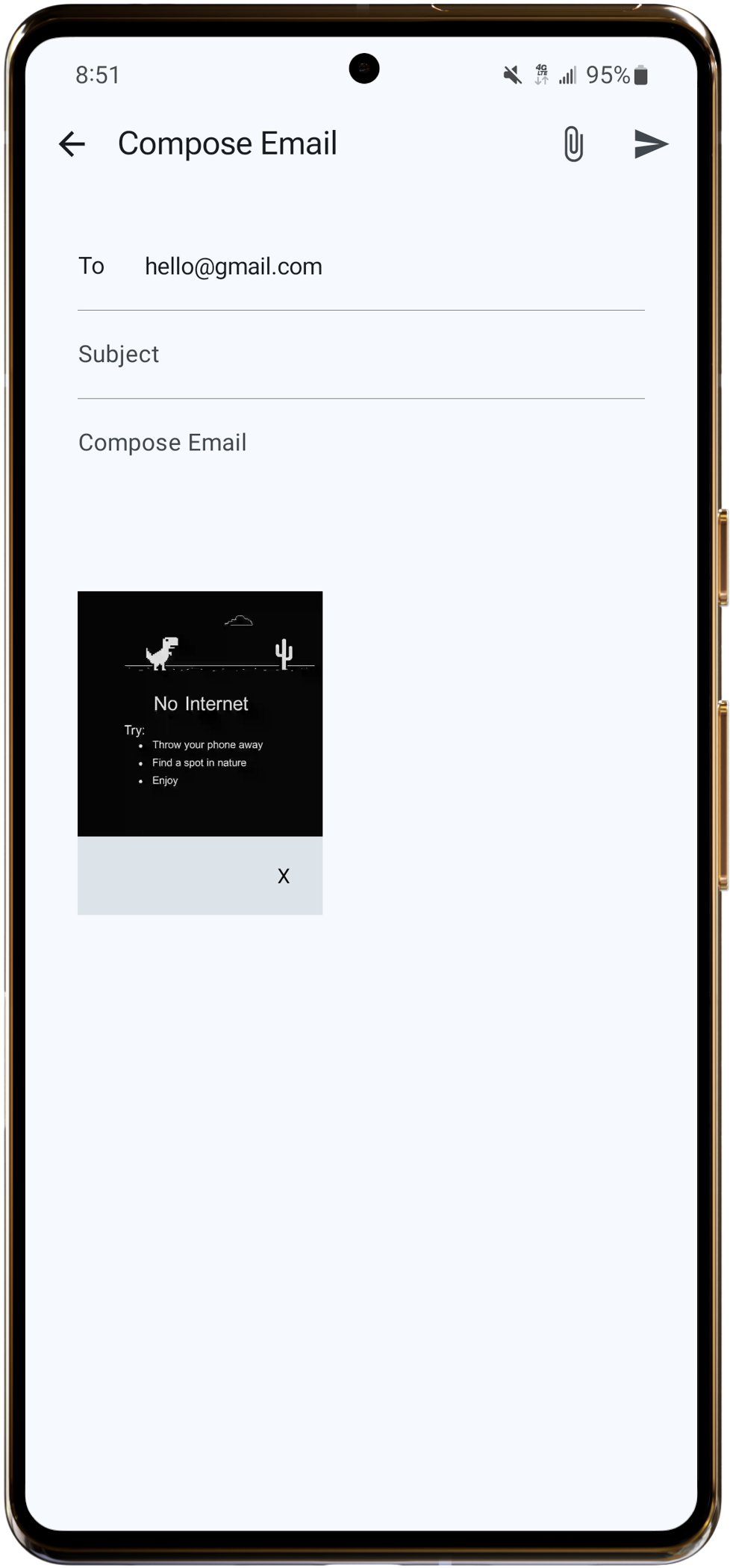
- Tap Compose.
- Choose your platform.
- Tap the attachment icon.
- Select your image.
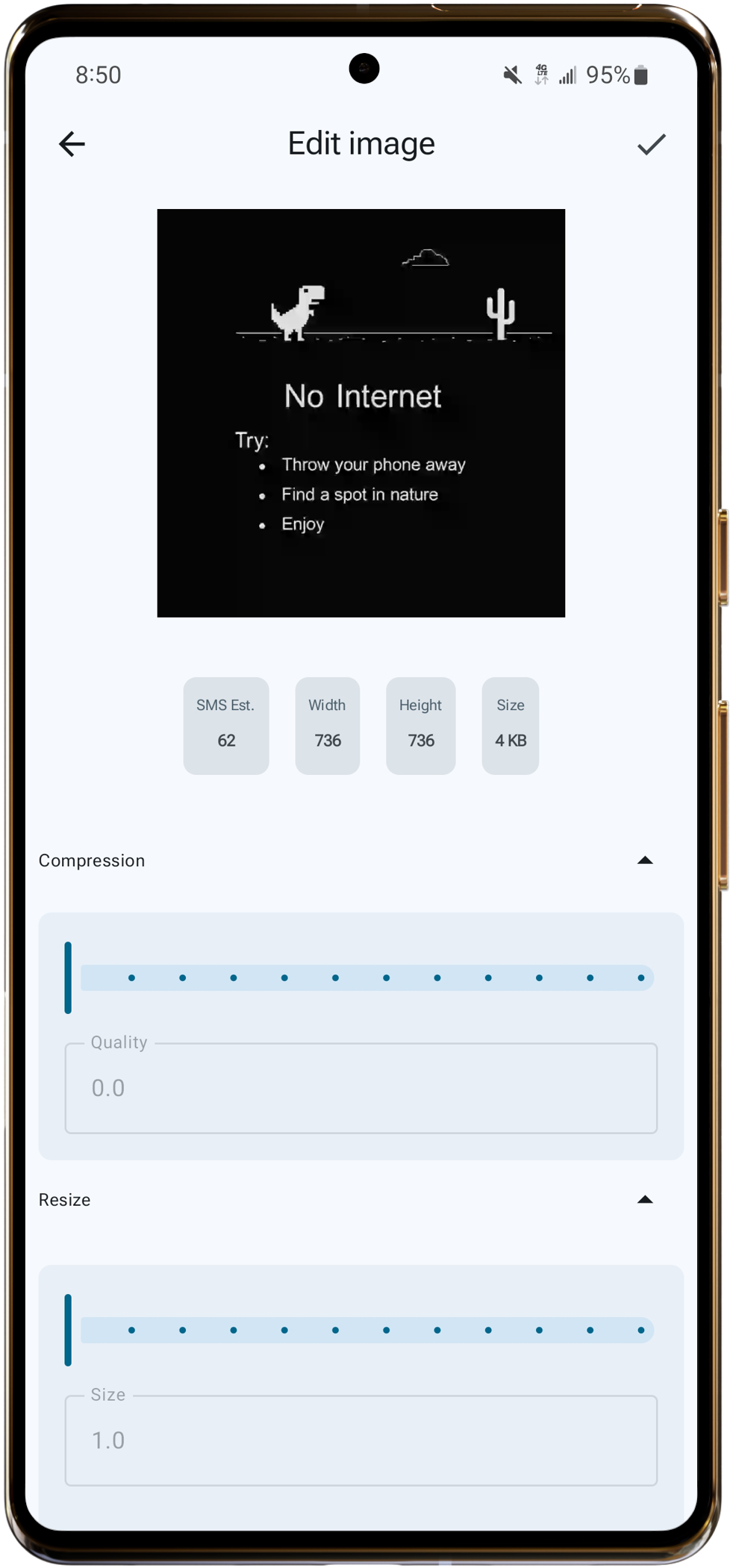
- Use compression and resize tools to reduce SMS cost and improve speed.
- Tap Done.
- Tap Send.
- Choose your routing number.
Do not panic if your outgoing SMS looks like random letters and numbers. That is expected encryption.